Set Up Xtream Code on Smart TV – Complete Guide
Setting up Xtream Code on your Samsung or LG Smart TV is the fastest and most reliable way to enjoy IPTV with smooth streaming, instant loading, and automatic EPG updates. By using the Xtream Codes API, your channels, movies, and series load instantly with better stability and cleaner organization compared to traditional M3U links.
In this guide, you’ll learn how to install the best IPTV apps and add your Xtream Code login details to start watching on your Smart TV in just minutes.
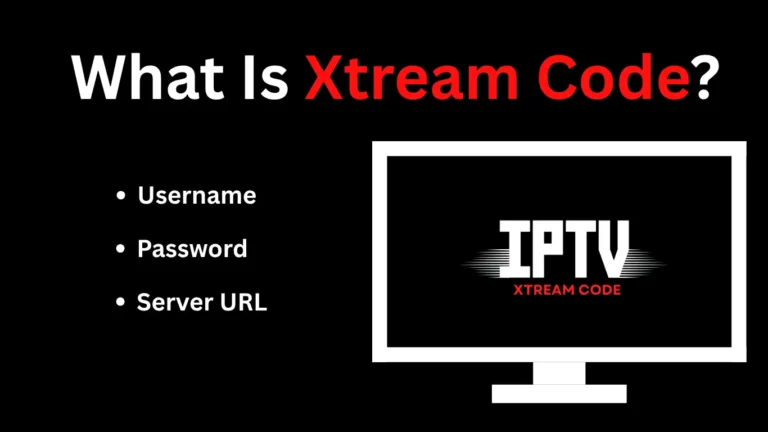
What Is Xtream Code?
Xtream Code is an IPTV login method that uses a Server URL, Username, and Password to connect your Smart TV directly to the provider’s server. It delivers faster loading, automatic channel organization, smooth Live TV, Movies, and Series playback, plus quick EPG updates—making it far more efficient and reliable than traditional M3U links. for more, visit: What is Xtream Code
Why Use Xtream Code on Smart TV?
Xtream Code is the easiest and fastest way to load IPTV on Samsung and LG Smart TVs.
Compared to M3U playlists, Xtream Codes API gives you:
If you have a Samsung or LG Smart TV, you only need a compatible IPTV app, your Xtream Code login, and a few minutes.
How to Set Up Xtream Code on Smart TV (Samsung & LG)
Learn the complete process of installing SmartOne IPTV on your Samsung or LG Smart TV, getting your Xtream Code details, and activating IPTV in minutes. This setup provides fast loading, smooth streaming, and fully organized channels.
1. How to Get Your Xtream Code IPTV Access
Get your free Xtream Code login, including your Server URL, Username, and Password. These details are required to activate IPTV on SmartOne. Follow the steps on this page: Get Free Xtream Code
2. Install SmartOne IPTV on Your Smart TV
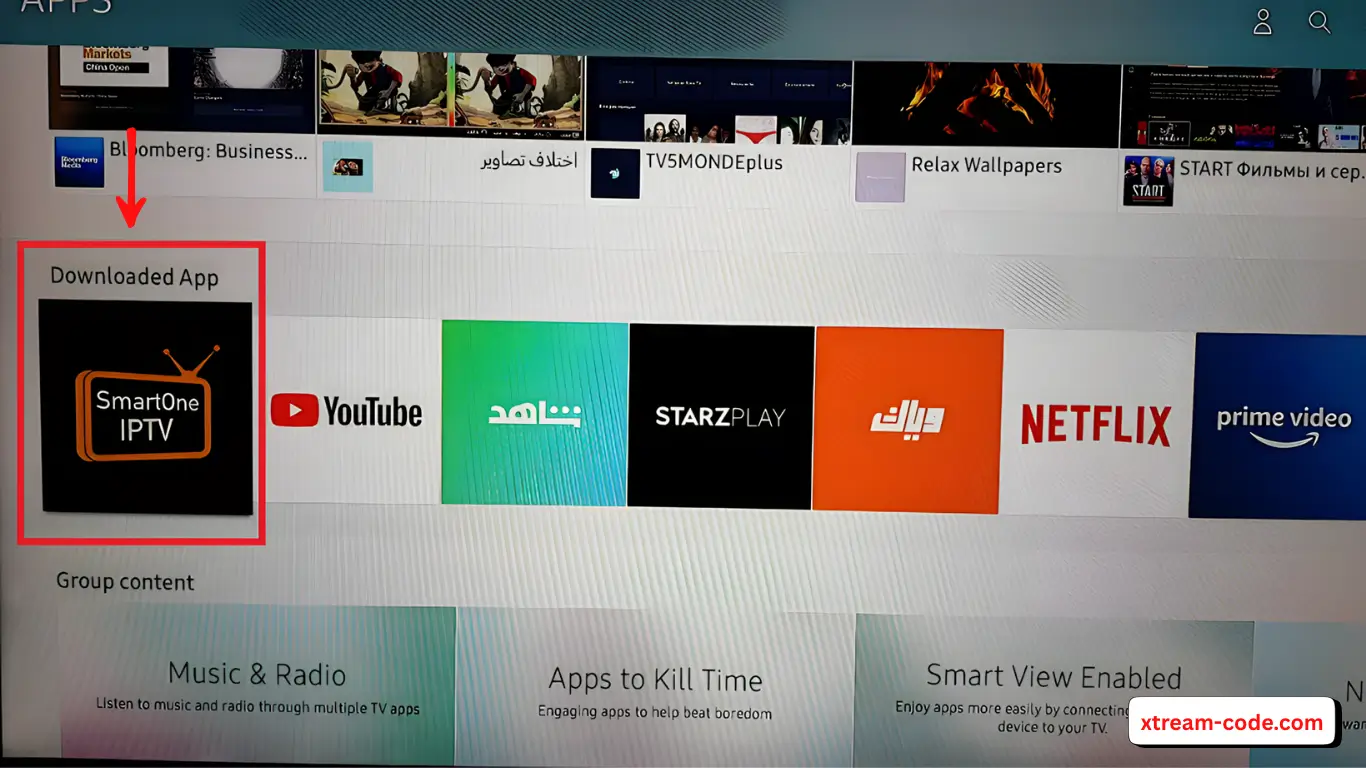
Open the Samsung or LG app store and install SmartOne IPTV directly on your Smart TV. This app is designed to work perfectly on both brands and offers fast performance and a clean interface.
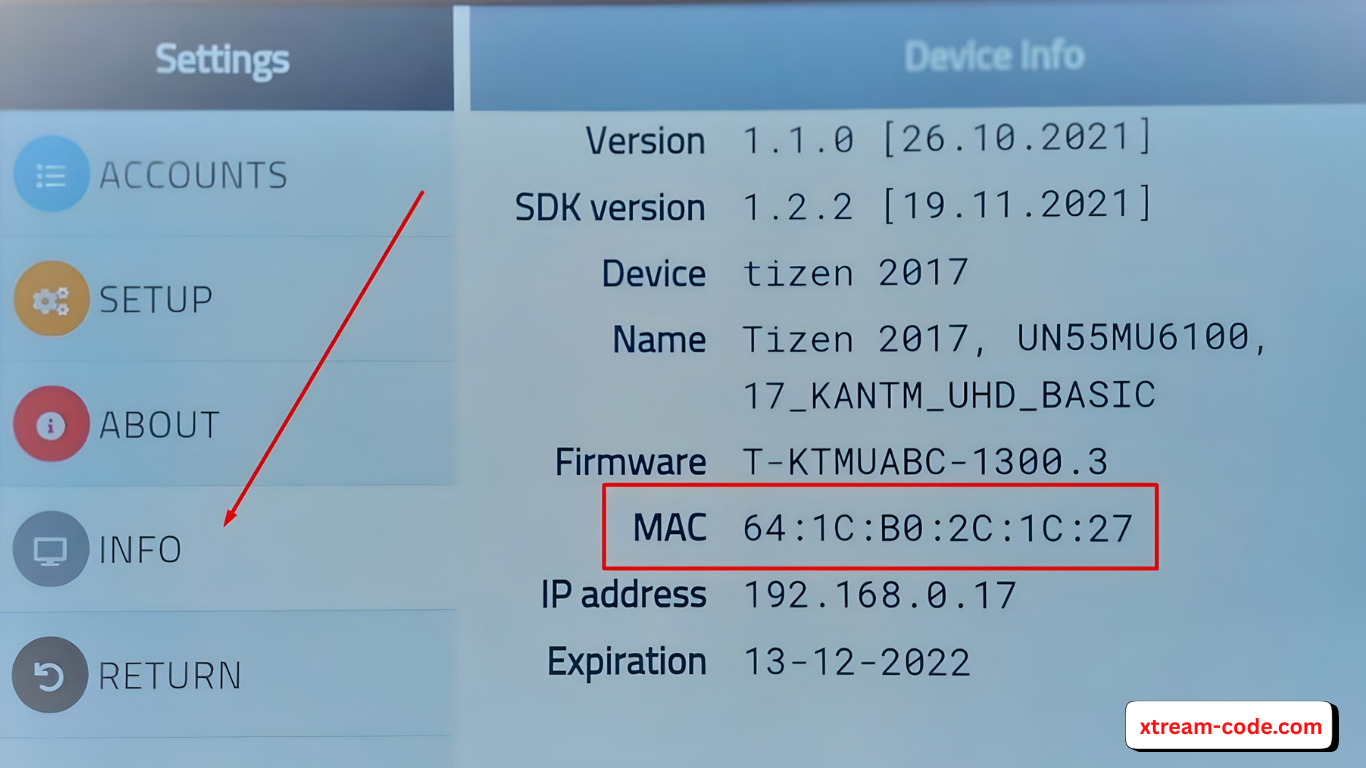
3. How to Find SmartOne IPTV MAC Address
After installing SmartOne on your Smart TV, you’ll need the app’s MAC address before you can enter your Xtream Code details.
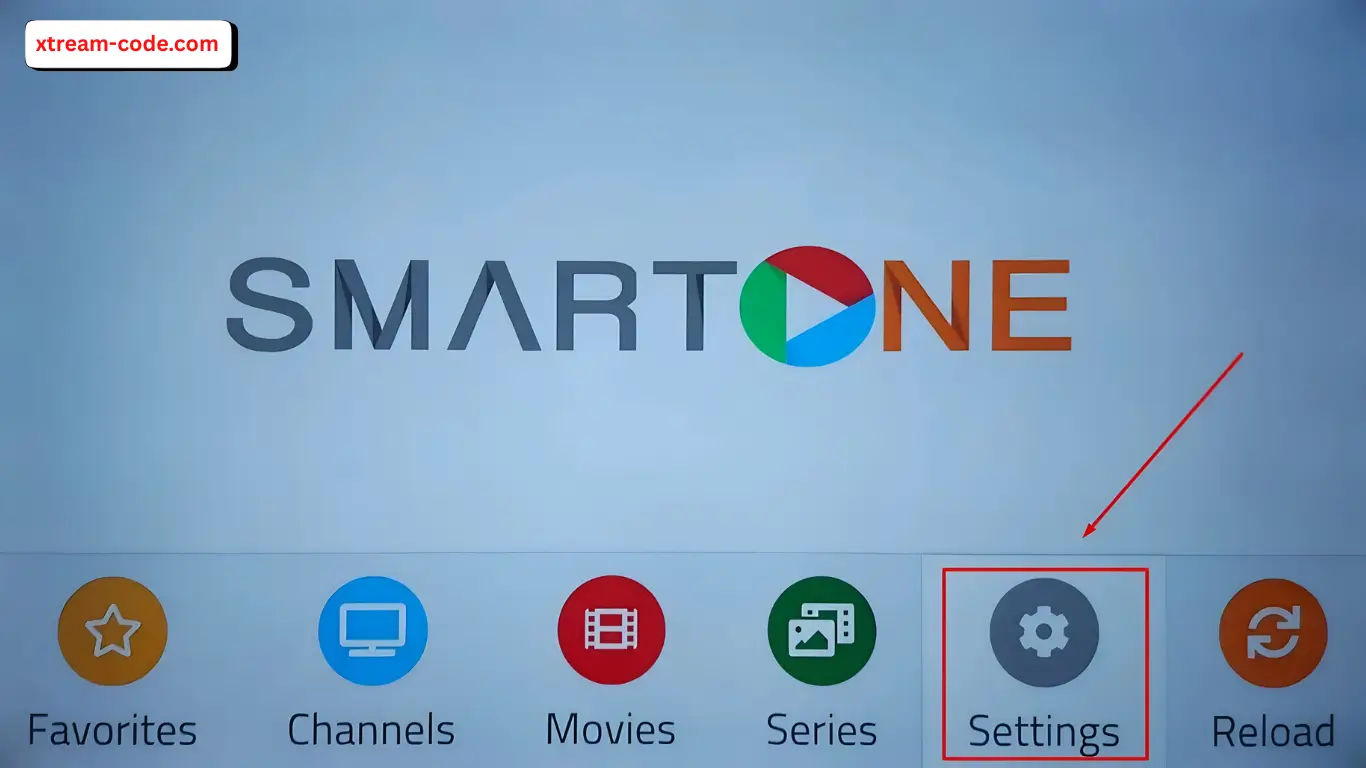
1. Open the SmartOne IPTV app on your Smart TV and go to the Settings section inside the app.
2. Find the MAC Address displayed under Account Info.
4. How to Add Xtream Code on SmartOne
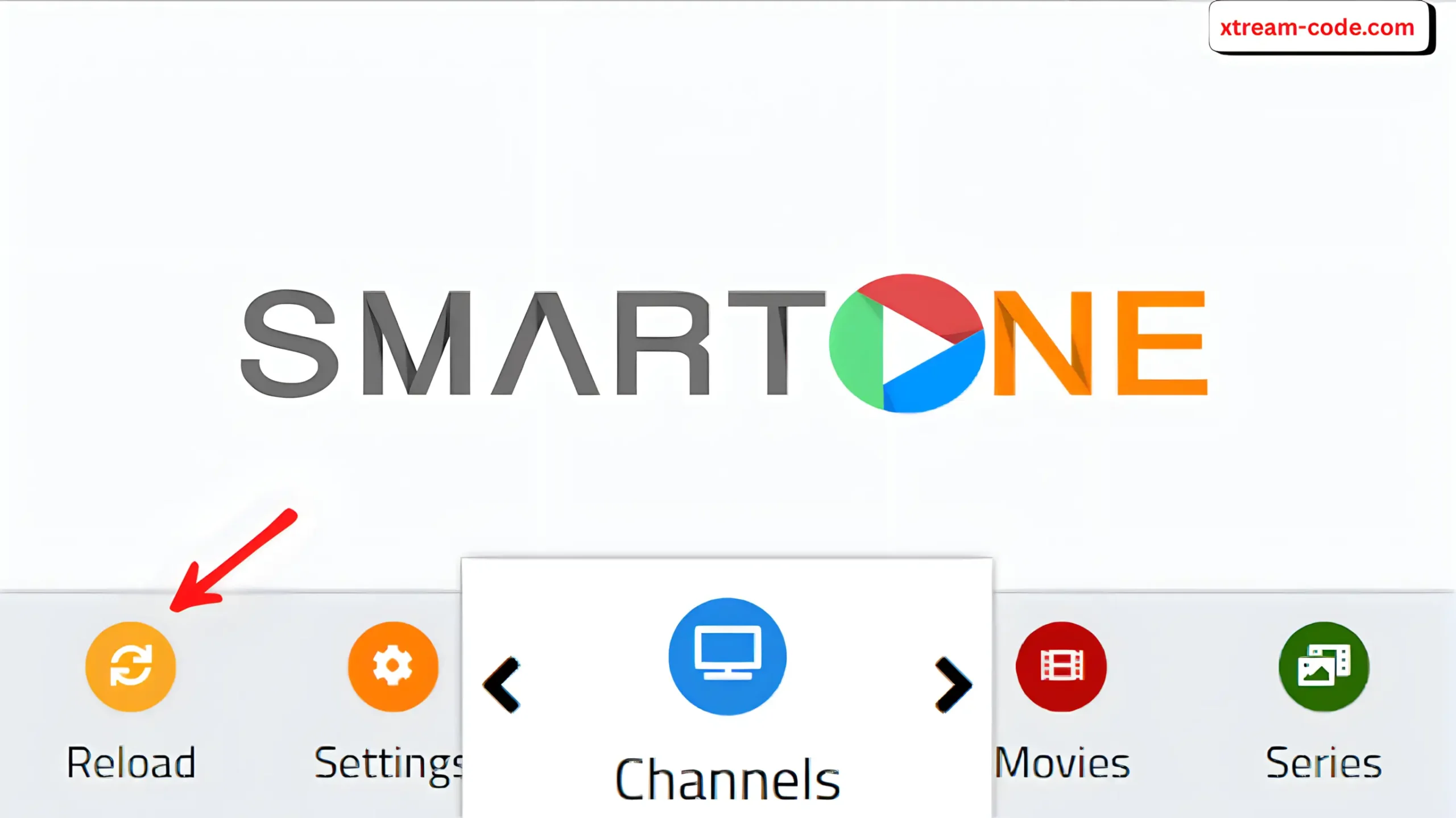
Now that you have your MAC address and Xtream Code details, add them on the SmartOne website, then return to the app and press Reload. In this post, you’ll find a step-by-step guide on how to add Xtream Code on the SmartOne website: SmartOne
Other IPTV Apps for Samsung & LG TVs
Choosing the right IPTV app is important if you want fast loading, smooth streaming, and full compatibility with Xtream Codes. Samsung and LG Smart TVs do not support every app, so here are the most reliable and stable IPTV players that work perfectly with the Xtream Codes API.
1. IPTV Smarters Pro
IPTV Smarters Pro is one of the most popular IPTV apps worldwide. It supports Xtream Code login for instant channel loading, automatic EPG, and a user-friendly layout. Although not available in all Samsung & LG stores, it works perfectly when installed through supported methods and delivers smooth Live TV, Movies, and Series streaming. more details here: IPTV Smarters Pro
2. IBO Player
IBO Player offers a clean and modern interface designed for fast IPTV performance on Smart TVs. It supports Xtream Codes API for instant loading, auto EPG, and organized categories for Live TV, Movies, and Series. It is available directly in the Samsung and LG TV app stores, making installation quick and easy. more details here: Ibo Player
3. SET IPTV
SET IPTV is a powerful IPTV player known for its speed and stability on Smart TVs. It fully supports Xtream Codes API and offers cloud-based playlist upload, fast channel organization, and quick EPG updates. It is available on Samsung and works smoothly on LG TVs as well.
4. BOB Player
BOB Player is a lightweight IPTV app designed for simple and fast Xtream Code login. It provides smooth playback, easy navigation, and organized channel groups on Samsung and LG Smart TVs. It supports Live TV, Movies, and Series with excellent stability and fast loading times.
Common Problems & Solutions
Even with a proper Xtream Code setup, Samsung and LG Smart TVs may occasionally experience small issues such as channel loading errors, missing EPG, or connection problems. This troubleshooting guide lists the most common IPTV issues and the fastest solutions to fix them.
1. Channels Not Loading
If your channels fail to open or stay stuck on loading, the issue is usually related to an inactive subscription or slow internet speed. A quick restart often resolves it.
2. Wrong Xtream Credentials
Incorrect login details are one of the most common IPTV issues. Make sure your Xtream Code information is entered exactly as provided.
3. No EPG (TV Guide)
Xtream Codes typically load the EPG automatically. If the TV Guide is missing or incomplete, refreshing the playlist usually solves the issue.
4. Black Screen on Channels
A black screen often signals a connectivity or ISP blocking issue. Adjusting DNS or rebooting your Smart TV can fix the problem.
Conclusion
Setting up Xtream Code on Samsung or LG Smart TV is extremely simple. Just install an IPTV app from the official store, add your Xtream Codes API (Server URL + Username + Password), activate the app if required, and refresh your playlist. Within minutes, your Live TV, Movies, and Series will be ready to stream with excellent stability and fast loading.
If you want a free Xtream Code trial, you can request one before upgrading to a full subscription.
FAQs